How to install a hero grid: hero_grid_config.json
Dota keeps all your hero grids in one file — hero_grid_config.json in the Steam folder. Installing a grid means putting a new file in its place without losing the grids you already have.
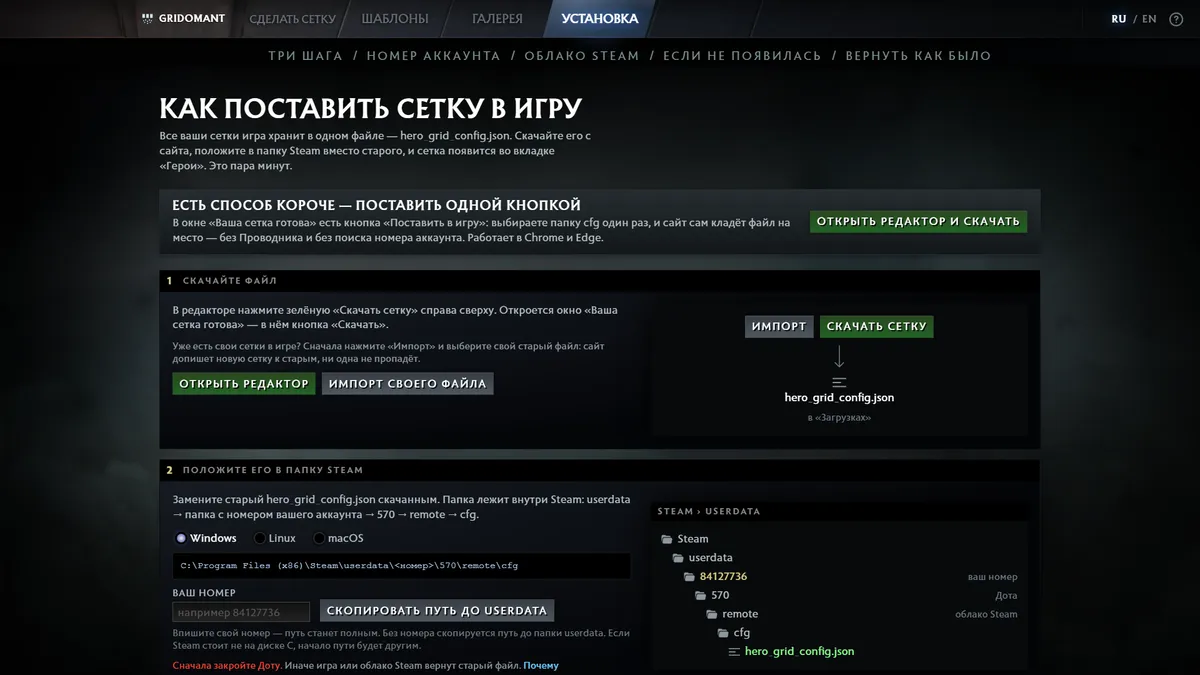
Where hero_grid_config.json is
The file lives in the Steam folder, separately for each account: userdata → account number → 570 → remote → cfg. 570 is Dota's Steam app number, remote is the folder Steam syncs with the cloud. The usual paths:
Windows: C:\Program Files (x86)\Steam\userdata\<number>\570\remote\cfgmacOS: ~/Library/Application Support/Steam/userdata/<number>/570/remote/cfgLinux: ~/.local/share/Steam/userdata/<number>/570/remote/cfgIf Steam is not on drive C, the start of the path differs. The account number is your Friend Code (Friend ID): in Steam it is under Friends → Add a Friend, in Dota it is in your profile. Only one numbered folder? That's the one.
Install step by step
- Build the grid on the site and press “Download grid”. In the “Your grid is ready” window press “Load my file” and pick your current
hero_grid_config.json— the download will be your file plus the new grids. - Close Dota. While the game is open it remembers the old grids and can write them over the new file.
- Replace the file in the
cfgfolder. If the browser named it “hero_grid_config (1).json”, rename it to exactlyhero_grid_config.json. - Launch the game → Heroes tab → “Sort:” at the bottom left → your grids.
One-button shortcut: the “Your grid is ready” window has “Put into the game” — pick the cfg folder once and the site places the file itself. Works in Chrome and Edge.
On Windows there is also an installer, gridomant-install.cmd (about 10 KB, a plain text script): it finds Steam, waits for you to close the game, saves a copy of your file next to it and appends the new grids to the old ones. Get it on the Install page.
Moving grids to another account or a friend
Grids are stored per Steam account. To copy them to another account on the same computer, close Dota and copy hero_grid_config.json from one numbered folder to the same place in the other — this replaces that account's grids entirely.
To merge instead, open the first account's file in the editor (“Open file”), press “Download grid” and load the second account's file in the “Your grid is ready” window: the download holds the grids of both. The same works for a friend — they open your file on the site, tick the grid they like and load their own file before downloading, so nothing of theirs is lost.
Steam Cloud and undoing
If Steam shows a cloud sync conflict at launch, choose the option that keeps the files on this computer and uploads them to the cloud — otherwise the old file comes back.
Before replacing, rename the old file to hero_grid_config.old.json. To undo: close Dota, delete the new file and rename the copy back.
Questions and answers
Can I keep several grids in the game?
Yes. All grids live in one file, and you switch between them in the “Sort:” list.
The grid didn't show up — what now?
Usually Dota was open while you replaced the file, or Steam Cloud restored the old one. Close Dota and Steam, put the file back and choose this computer's files if Steam asks about a conflict.
Is the installer safe?
It is a plain text script you can open in Notepad and read. Windows may show SmartScreen because it isn't signed — “More info” → “Run anyway”.